Using SRU Files for Tax Filing
Last updated: Mar 30, 2026
Skatteguru allows you to export your K4 form data into an SRU (Standardiserat Räkenskapsutdrag) file. This format is accepted by Skatteverket and can save you significant time by avoiding manual data entry.
Choose the right upload method
Downloading Your SRU File from Skatteguru
Follow these steps to download your K4 data as an SRU file:
Navigate to K4 Form
Review Your Data
Click SRU File Button
Enter Your Details
Download the File
BLANKETTER.SRU).Important: Verify Your Details
Method 1: Direct Import (300 sales or fewer)
If your SRU file has 300 sales or fewer, the quickest method is to import it directly in Skatteverket's income tax declaration e-service.
More than 300 sales?
Log in to Skatteverket
Go to Income Tax Declaration
Find K4 Form Section
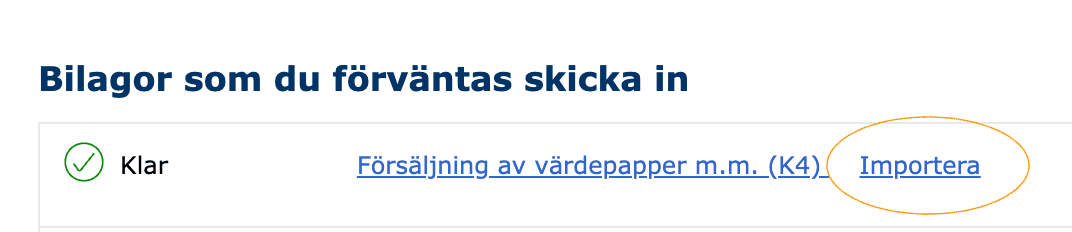
Select Your SRU File
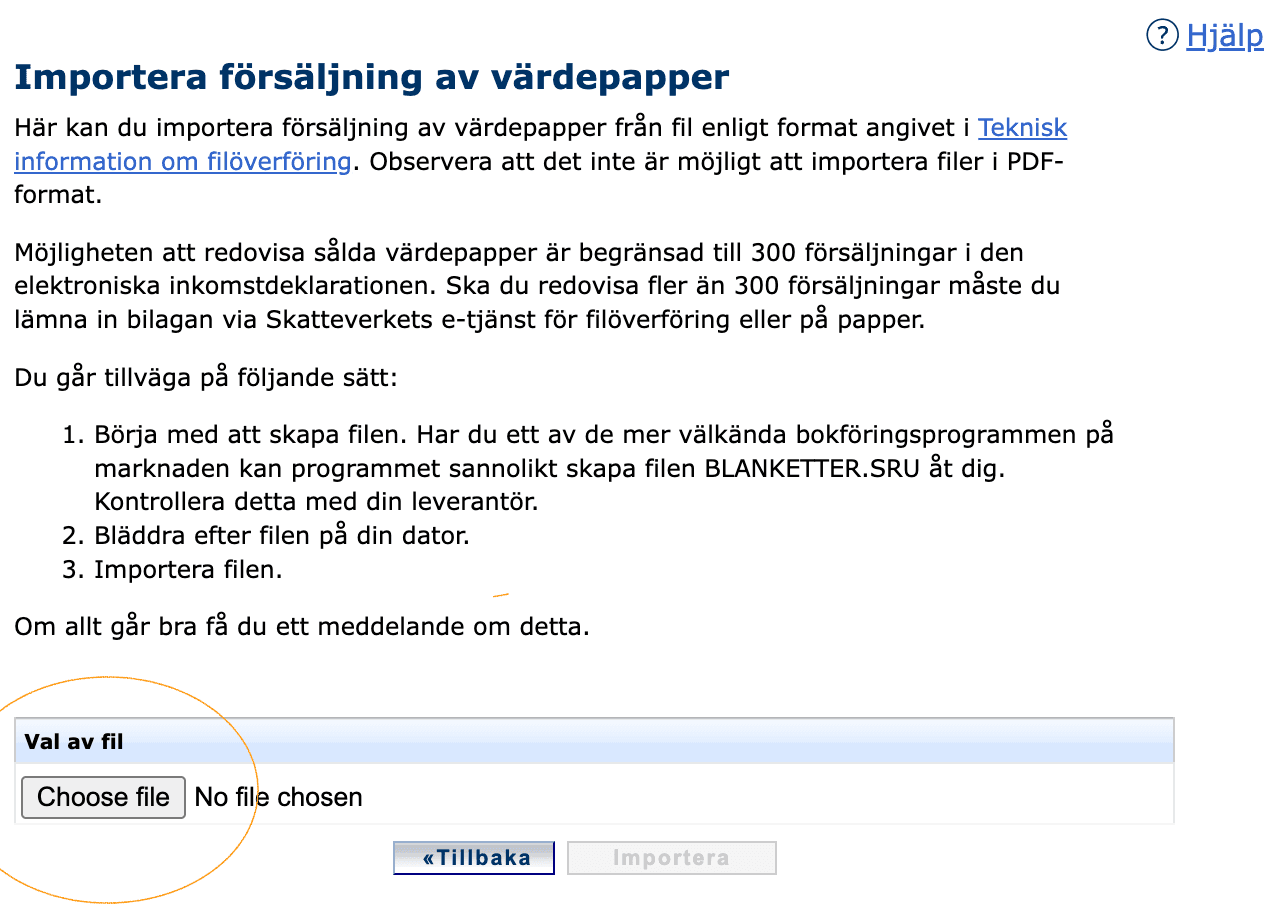
Complete the Upload
Review and Submit
Website Changes May Occur
Next Steps
After importing your SRU file, Skatteverket will automatically populate the K4 form fields with your data. Here's what to do:
- Review all imported numbers carefully for accuracy
- Verify that profits, losses, and acquisition costs match your records
- Make any manual corrections if needed
- Complete any remaining fields in your tax declaration
- Submit your declaration when satisfied
Method 2: Using Skatteverket's Filöverföring
If the direct import method fails, or Skatteverket says your BLANKETTER.SRU contains more than 300 sales, use Skatteverket's dedicated file transfer e-service ("Filöverföring"). This service accepts SRU files and processes them separately from your income tax declaration.
When to use this method
Understanding SRU Files
Skatteverket's filöverföring service requires two SRU files:
- INFO.SRU: Contains metadata about the SRU package and file creator/uploader (Skatteguru/Fysikum AB), not your K4 trade data. Download INFO.SRU
- BLANKETTER.SRU: Contains your actual K4 form data with your personal number, name, and trade information (downloaded from Skatteguru)
Both Files Required
INFO.SRU and BLANKETTER.SRU to filöverföring. Download INFO.SRU above and use the BLANKETTER.SRU file from Skatteguru.Step-by-Step Instructions
Download INFO.SRU
Locate BLANKETTER.SRU
BLANKETTER.SRU file you downloaded from Skatteguru.Log in to Skatteverket
Navigate to Filöverföring
Upload INFO.SRU
Upload BLANKETTER.SRU
BLANKETTER.SRU file from Skatteguru.Verify and Submit
Save the Confirmation
Do NOT Rename the Files
INFO.SRU and BLANKETTER.SRU. Skatteverket's system expects these exact filenames. Renaming them will cause the upload to fail.File Size Limit
BLANKETTER.SRU file must not exceed 5 MB. If your file is larger, contact Skatteguru support for assistance.Next Steps
After uploading your files via filöverföring, Skatteverket will process your SRU files. Here's what happens next:
- Wait for Skatteverket to process your files
- Check your income tax declaration e-service for updated information
- Your K4 data should appear pre-filled in the relevant form fields
- Review all imported numbers carefully for accuracy
- You may need to manually transfer some figures to the correct boxes if auto-fill doesn't work
- Complete any remaining fields in your tax declaration
- Submit your declaration when satisfied
Need Help?
Related Articles
- K4 Filing with Skatteguru — Understanding the K4 form requirements
- Additional Tax Payments — Information about paying additional tax
- Late Filing Penalties — Learn about deadlines and extension requests
- Tax Filing FAQ — Common questions about tax filing

We're Here to Help
Have questions or feedback? We'd love to hear from you. Get in touch.