Intelligent Auto-Deduplication with Human Review
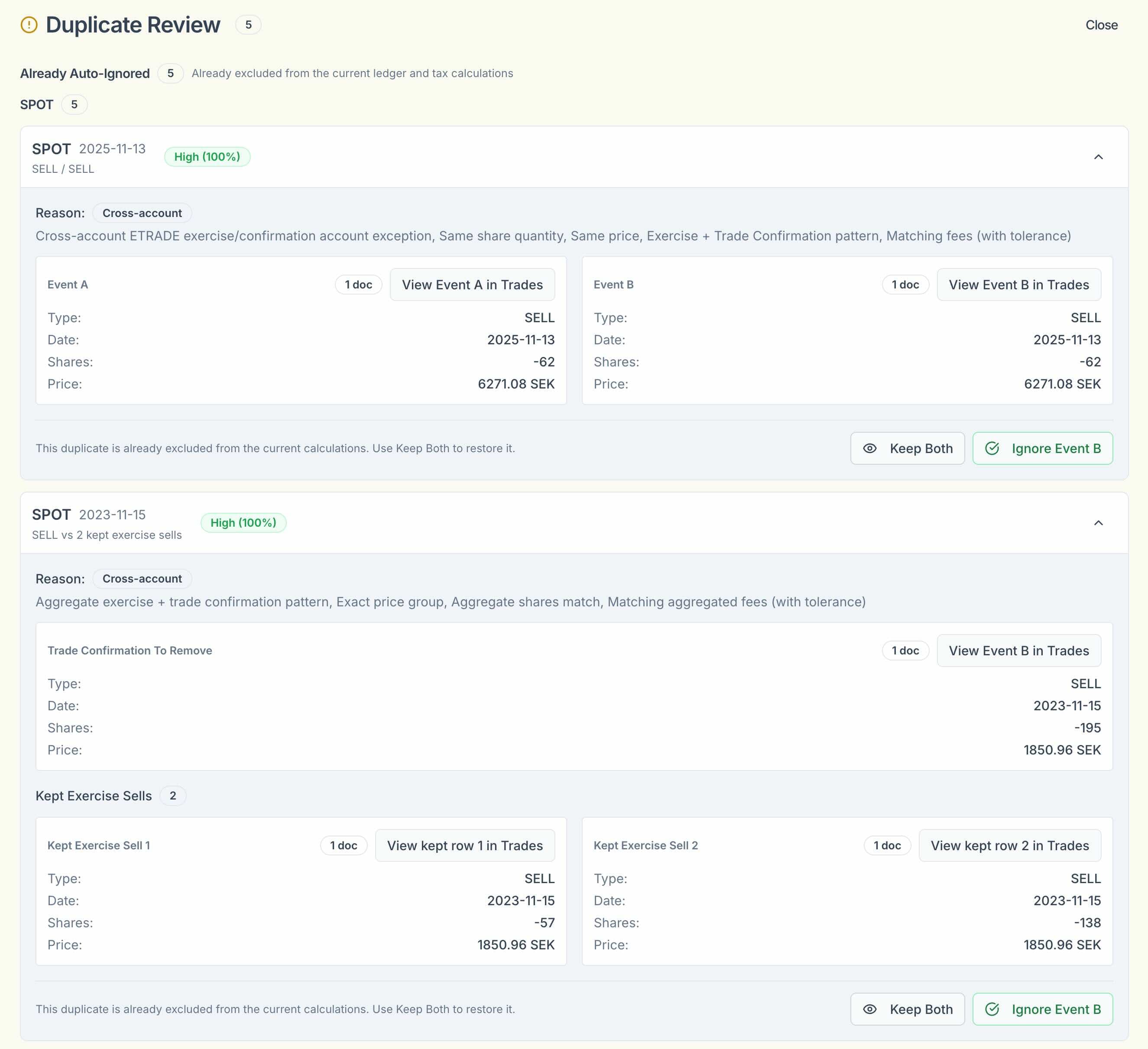
We're excited to announce our new Human-in-the-Loop (HITL) strategy for document deduplication. This approach combines the power of intelligent automated duplicate detection with your expert oversight, ensuring perfect accuracy while saving you time.
On March 17, we rolled out an initial version of our automatic deduplication system. We've now refined this feature with a comprehensive review flow that puts you in control while handling the heavy lifting automatically.
The Problem: Duplicate Documents
When uploading documents from brokers like E*TRADE, it's common to end up with duplicate trade data. This happens because:
- Same-day sales generate both an Exercise Confirmation (with individual sell events per grant) and a Trade Confirmation (often with a combined sale)
- Fee discrepancies can cause the same trade to be reported with slightly different amounts
- Multiple uploads of the same document can occur accidentally
Why This Matters
Duplicate trades can significantly affect your tax calculations, potentially leading to incorrect capital gains reporting. Our goal is to ensure your calculations are accurate while making the process as smooth as possible.
Our Solution: Intelligent Detection + Human Review
Our new HITL approach works in three stages:
1. Automatic Detection
When you upload documents, our system automatically scans for potential duplicates using multiple matching criteria:
- Stock symbol and account number
- Transaction date
- Number of shares
- Price per share
- Transaction type (e.g., SELL)
2. Confidence Scoring
Each potential duplicate is assigned a confidence score indicating how likely it is to be a true duplicate. Higher scores mean greater certainty.
This scoring helps you quickly identify which duplicates are obvious (and can be safely ignored) versus those that might need closer inspection.
3. Human Review (You!)
A review panel appears at the top of your Tax or Trade History tab, showing all detected duplicates. You can:
- Accept the recommendations and keep the duplicates ignored
- Restore any event that was incorrectly flagged
- Review the matching criteria to understand why it was flagged
Advanced: Complex Duplicate Detection
Our system goes beyond simple one-to-one matching. It can detect complex scenarios where multiple events combine to match another document.
Example: Two Individual Sales → One Combined Sale
When you exercise options from two different grants on the same day and sell all shares:
- Exercise Confirmation: Shows two separate sell events (one per grant), each with its own execution time
- Trade Confirmation: Shows one combined sale with the total number of shares
Our system intelligently recognizes that these two individual sells together match the combined sale on the Trade Confirmation.
Why We Keep Individual Events
When we detect this scenario, we intelligently keep the individual sell events from the Exercise Confirmation and ignore the Trade Confirmation. This is crucial for accurate tax calculations because:
- A single combined sale doesn't give you the option to be accurate with same-day sale ordering
- You need each individual sell event to specify execution times and order them correctly
- This granularity ensures proper capital gains calculations when multiple same-day sales occur
Trade Confirmations and Same-Day Sale Ordering: For accurate tax calculations when you have multiple same-day sales, you need each individual sell event to specify execution times and order them correctly.
How to Use the Review Panel
- Upload your documents as usual. The system will automatically scan for duplicates.
- Check the review panel at the top of your Tax or Trade History tab. It appears when duplicates are detected.
- Review the confidence scores to understand how certain the system is about each duplicate.
- Accept or restore events based on your review. Click "Restore" for any events that shouldn't have been flagged.
- Continue with your tax filing knowing that your trade history is accurate and deduplicated.
Pro Tip
The automatic deduplication is particularly effective at detecting duplicates from Trade Confirmations that match events in Stock Exercise Confirmations. Check this panel first before manually deleting documents—you might find that the work has already been done for you!
Still Need Help?
If you're unsure about whether to accept or restore a duplicate, or if you're seeing unexpected behavior, our support team is here to help. Reach out with details about your situation, and we'll assist you in getting it sorted.
You can also read more about deduplication in our Help Center article →
Human-in-the-Loop: The Best of Both Worlds
Making tax filing more accurate, one duplicate at a time.
- The Skatteguru Team