SkatteguruSkatteguru2.6 Beta
How It WorksPricingFAQHelpNews
Start For Free

Product

  • Pricing
  • News
  • Reviews

Contact

  • Help Center
  • Contact Us
  • Report an Issue
  • Follow on X

Legal

  • Terms of Service
  • Privacy Policy
  • Cookie Policy
  • Cookie Settings
© 2026 Skatteguru
    1. Home
    2. Help Center
    3. Filing
    4. Deduplication

    How to Fix Duplicated Sales of Exercised Options in Your Calculations

    Last updated: Mar 20, 2026

    If you've noticed that the sales of your exercised options appear duplicated in your trade calculations, don't worry—we've got you covered! This issue can sometimes arise due to inconsistencies in how trade data is reported (e.g., commissions or disbursement fees from platforms like E*TRADE). Below, we'll walk you through a simple workaround to correct this and get your calculations back on track.

    Why This Happens

    Our system includes an automatic deduplication feature to identify and remove duplicate trades. This feature compares events across documents and flags potential duplicates based on matching criteria like stock symbol, transaction date, number of shares, and price per share.
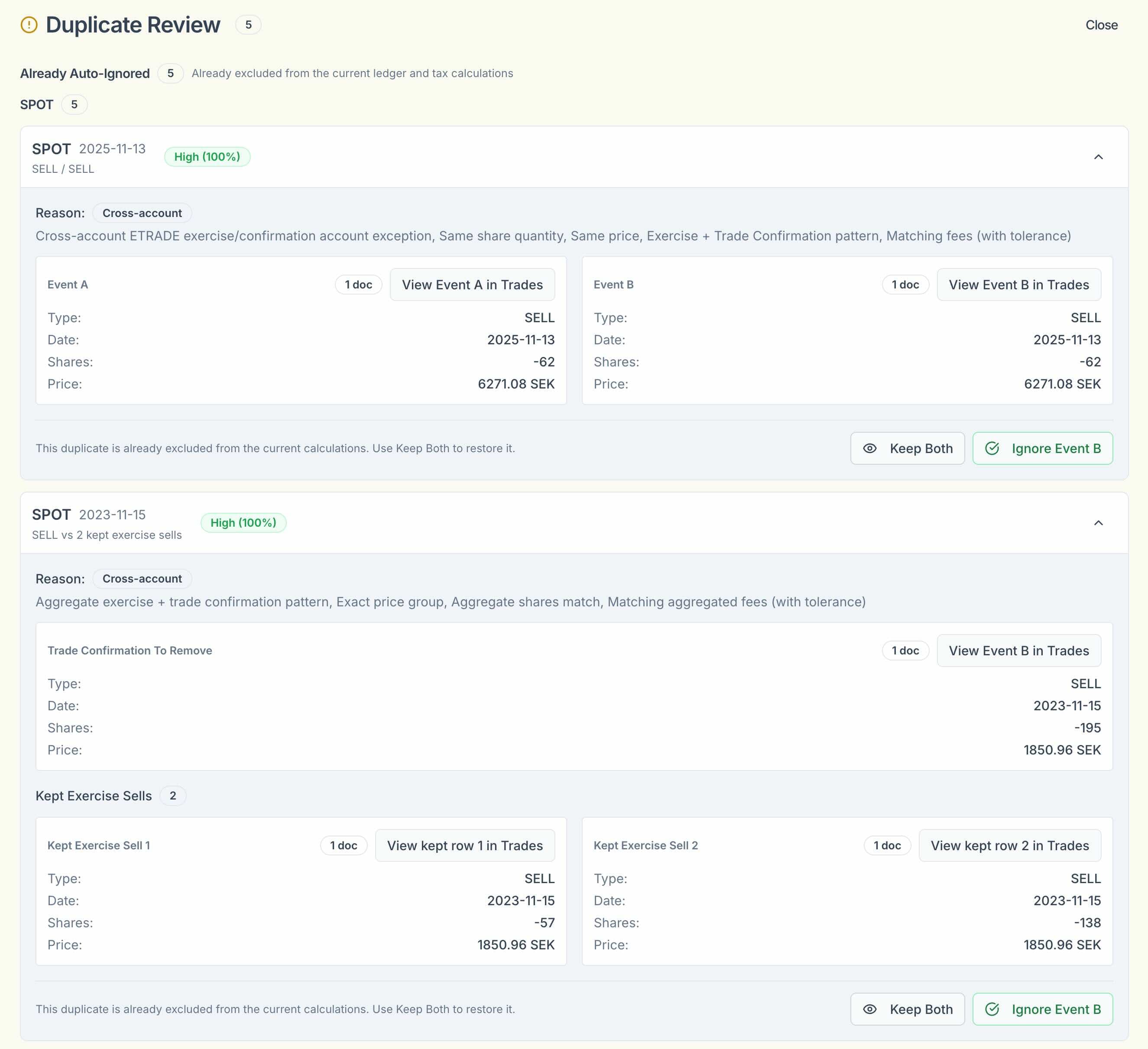
    Advanced duplicate detection: Our system can even detect cases where two individual sell events from an Exercise Confirmation together match a single combined sale on a Trade Confirmation. For example, if you exercised options from two grants on the same day and sold all shares, the Trade Confirmation might show one combined sale, while the Exercise Confirmation shows two separate sales. Our system intelligently matches these as duplicates.
    Review panel showing automatically detected duplicates with confidence scores

    When duplicates are detected, a review panel appears at the top of your Tax or Trade History tab. Each ignored event shows a confidence score indicating how likely it is to be a duplicate. You can choose to accept the duplicates or restore them.

    Trade Confirmations and Same-Day Sale Ordering: While Trade Confirmations can be useful for verification, a single combined sale event doesn't give you the option to be accurate. For accurate tax calculations when you have multiple same-day sales, you need each individual sell event to be able to specify the execution time and order them correctly. Learn more about same-day sale ordering →
    Good news: When we detect this scenario (two individual sells from Exercise Confirmations that match a combined Trade Confirmation sale), we intelligently keep the individual sell events from the exercise grants and ignore the Trade Confirmation. This ensures you have the granular control needed for accurate same-day sale ordering without losing any data.
    Automatic deduplication works well in most cases, but it's not foolproof. If a trade platform reports details like commissions or fees inconsistently, the system might not recognize two entries as the same trade, leading to duplicates in your results.

    Step-by-Step Solution

    Follow these steps to remove duplicate trade data and ensure accurate calculations:

    1

    Delete Existing Trade Confirmation Documents

    Start by removing all your current Trade Confirmation files from your account. This clears the slate for a fresh upload.
    2

    Download Trade Confirmations Individually

    Instead of downloading your Trade Confirmations as a single combined PDF, download each one separately from your trading platform (e.g., E*TRADE). This gives you more control over the data you upload.
    3

    Identify and Remove Duplicates

    Compare your Trade Confirmation files with your Exercise Confirmation documents.

    • Delete any Trade Confirmation files that contain duplicate sales data already reflected in your Exercise Confirmation documents (e.g., same-day sales).
    • Keep the Trade Confirmations for trades not included in your Exercise Confirmations.
    4

    Upload the Remaining Files

    Upload the filtered set of Trade Confirmation files to your account.
    5

    Run the Analysis Again

    Once the corrected files are uploaded, re-run the analysis. Your calculations should now reflect accurate, deduplicated data.

    Pro Tip

    Downloading Trade Confirmations individually rather than as a combined file makes it easier to spot and remove duplicates. It's a small extra step that saves time and hassle!

    Alternative: Using Automatic Deduplication

    Before manually removing files, you can check if our automatic deduplication has already identified the duplicates:

    1

    Check the Review Panel

    Look for the review panel at the top of your Tax or Trade History tab. This appears when duplicates are detected and shows all events that were automatically flagged.
    2

    Review Confidence Scores

    Each ignored event displays a confidence score. Higher scores indicate greater certainty that the event is a duplicate.
    3

    Accept or Restore

    You can accept the deduplication recommendations or click Restore for any events that were incorrectly flagged as duplicates.
    Tip: The automatic deduplication is particularly effective at detecting duplicates from Trade Confirmations that match events in Stock Exercise Confirmations. Check this panel first before manually deleting documents.

    Still Seeing Issues?

    If you've followed these steps and still notice duplicates or other problems, we're here to help! Reach out to us with details about your situation, and we'll assist you in getting it sorted.

    Related Articles

    • E*TRADE Document Parsing — How we process your E*TRADE documents and handle deduplication
    • Required Documents for Spotify ESOP Users — Which documents to upload and which to skip

    Skatteguru mascot

    We're Here to Help

    Have questions or feedback? We'd love to hear from you. Get in touch.