SkatteguruSkatteguru2.6 Beta
How It WorksPricingFAQHelpNews
Start For Free

Product

  • Pricing
  • News
  • Reviews

Contact

  • Help Center
  • Contact Us
  • Report an Issue
  • Follow on X

Legal

  • Terms of Service
  • Privacy Policy
  • Cookie Policy
  • Cookie Settings
© 2026 Skatteguru
    1. Home
    2. Help Center
    3. Import
    4. Etrade Documents
    Back to Help Center

    Required Documents for Spotify ESOP Users

    Last updated: Jan 10, 2025

    As part of competitive compensation packages, many Companies offer Employee Stock Ownership Plans (ESOP), which may include Restricted Stock Units (RSUs), Stock Options (SO), and/or Cash. If your work compensation is neither RSUs or Stock Options, you can skip this guide.

    Download ETrade Trade Confirmations

    Hint: You only need to upload the Trade Confirmations if you have bought or sold shares outside of stock option exercises. If you have only exercised options resulting in same-day sales, the Stock Exercise Confirmation documents already contain all the information needed. Uploading Trade Confirmations for same-day sales will create duplicate entries. Our system uses clever heuristics to auto-ignore events from trade confirmations that seem to match same-day-sales from stock option exercises, and you will be able to review the ignored events. If our de-deplication fails, you will typically see warnings about selling more shares than you own, in which case you can try to locate a date where you have duplicated sales of the same number of shares. You can then manually ignore one of the events in your trade history, by clicking on the row.
    Trade Confirmations are verification documents for each sale of shares. However, same-day-sales from stock option exercises will generate both a Trade Confirmation AND a Stock Exercise Confirmation. These documents contain duplicate information — the sale details are already captured in the Stock Exercise Confirmation. Learn how we process these documents.

    Go to the ETrade Documents page (you need to be logged in):

    1. Click on "Filter"
    2. Select Account: "All"
    3. Select Document Type: "Trade Confirmations"
    4. Select each calendar year where you had trades (you'll need to download documents for each year separately)
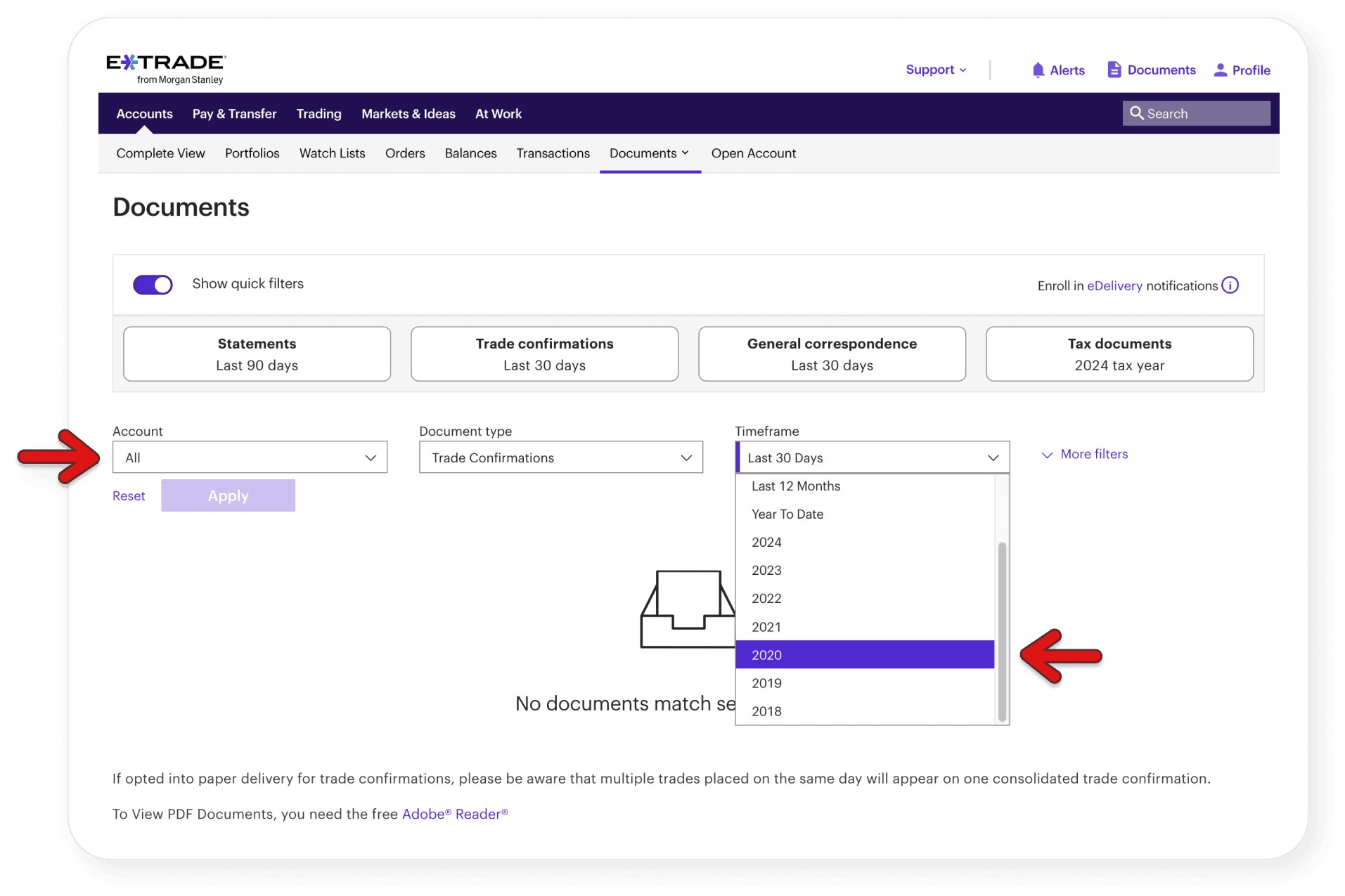
    ETrade Documents page showing how to find trade confirmations

    When to download Trade Confirmations:

    • Download if you have bought shares and held them, then sold them later (outside of stock option exercises)
    • Download if you have sold shares that were acquired through RSU vesting at a later date
    • Do NOT download if you only have same-day sales from stock option exercises — the Stock Exercise Confirmation already contains this information

    Checking for duplicates:

    If you see multiple sales on the same date with the same number of shares, one may be a duplicate from a Trade Confirmation. You can delete the Trade Confirmation document — the Stock Exercise Confirmation contains the same information.

    If you need to download Trade Confirmations:

    1. Once you see the list of trade confirmations, select the documents you want to download by clicking the checkbox to the left of each one
    2. At the bottom of the page, you'll find a "Download" button. Depending on your personal preference, you can either:
      • "Download multiple files" to receive a separate PDF for each trade date (in an archive)
      • "Download selections as one file" to get a single PDF containing all trades.
    3. In your download folder, you will find an archive or a single PDF file. You should upload that file to Skatteguru.
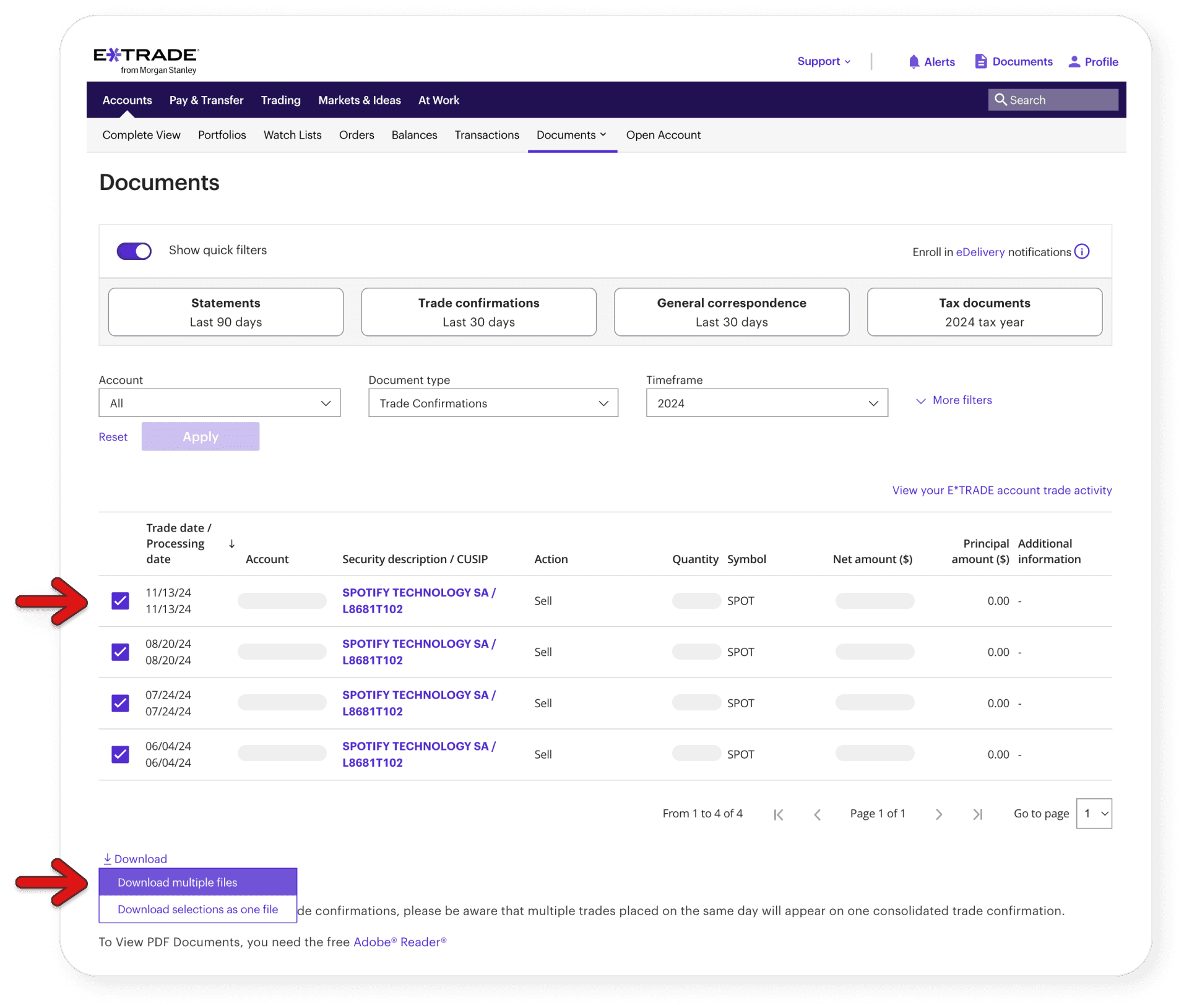
    You'll need to repeat this process for each year where you had trades
    Note: ETrade limits you to downloading 12 documents at a time. If you have more than 12 documents, you'll need to download them in multiple batches.
    ETrade page showing how to download trade confirmations

    ETrade Stock Plan Confirmations

    This data set of these documents is necessary to correctly calculate the average acquisition cost for shares that you have sold, if you for example did some same-day-sales but didn't sell all your shares. Learn how we process these documents.

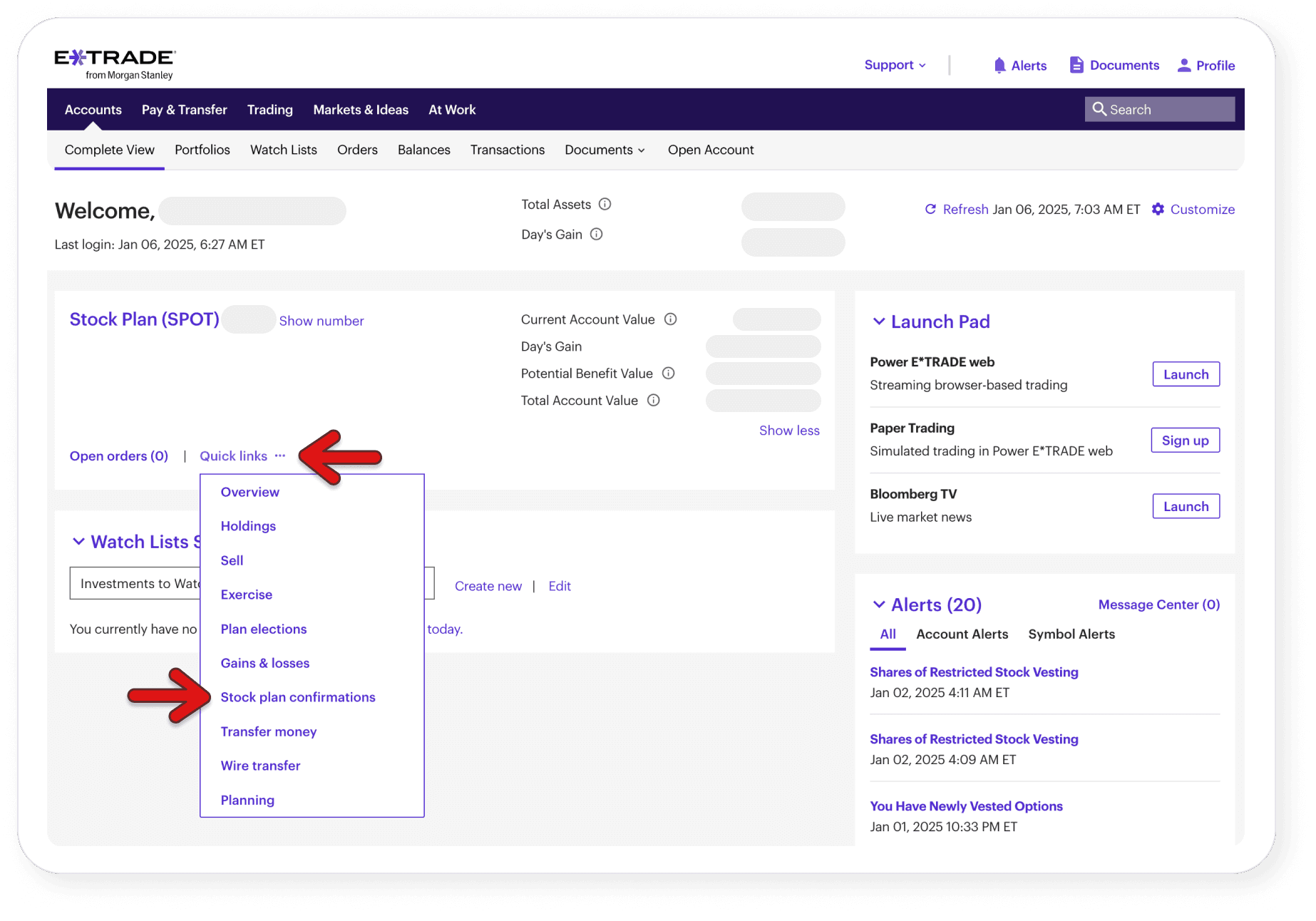
    Go to the ETrade Account page page (You need to be logged in):

    • Click on Quick links
    • Select "Stock plan confirmations"

    Advertisement:

    Are you tired of clicking? Are your fingers sore? Give automation a try and skip the rest of this guide.

    ETrade page showing how to find stock plan confirmations
    • On year, select "Custom Date"
    • For date range, select a range that includes the entire time you've been a Spotify employee
    • For benefit type, select Restricted Stock
    • Click on Apply, then click "View all" to see all documents, and download each one listed
    • Repeat the same process for the benefit type Stock Options
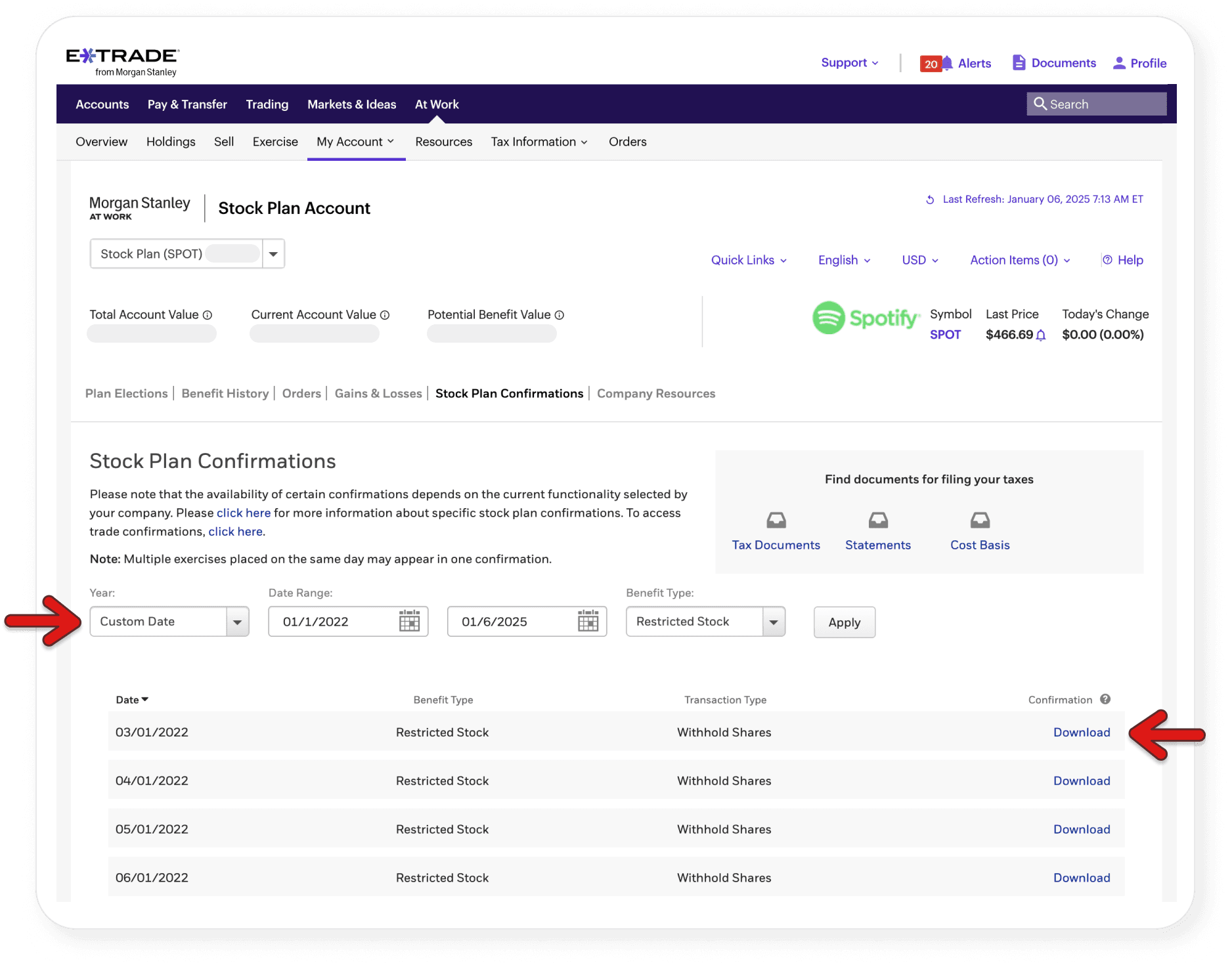
    ETrade page showing how to download RSU documents
    Note: Depending on your ESOP selection, you may receive RSUs, Stock Options or both.
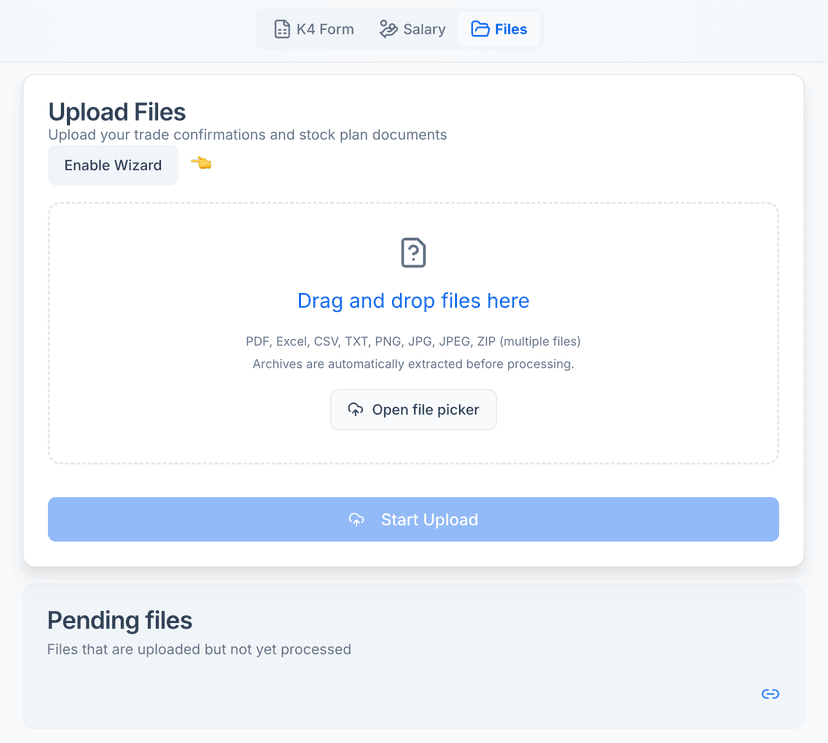
    Document upload interface

    Do Next

    Upload your documents

    With documents in hand, go to Skatteguru and upload them to get your results.

    Skatteguru mascot

    We're Here to Help

    Have questions or feedback? We'd love to hear from you. Get in touch.