
Export CSV from Avanza
Last updated: Jan 20, 2026
Beta Status
This guide will help you export your transaction data from Avanza bank in CSV format, for use in Skatteguru.
While Avanza does provide a K4 form generation service, there are some reasons why you might want to use Skatteguru instead:
- Multiple brokers: If you've traded the same security across different brokers (not just Avanza), your average cost basis needs to be calculated with all transactions combined. Avanza only knows about transactions within their platform.
- Verification: You are personally liable for the accuracy of your K4 form, not Avanza. Skatteguru gives you the tools to verify and understand your tax situation.
- Riksbanken rates: For foreign currency transactions, Skatteguru uses Sveriges Riksbank's official exchange rates, which Skatteverket recommends.
Steps to export CSV from Avanza
Log in to Avanza
Navigate to Transaktioner (Transactions)
Go to Min ekonomi → Transaktioner and select the relevant account.
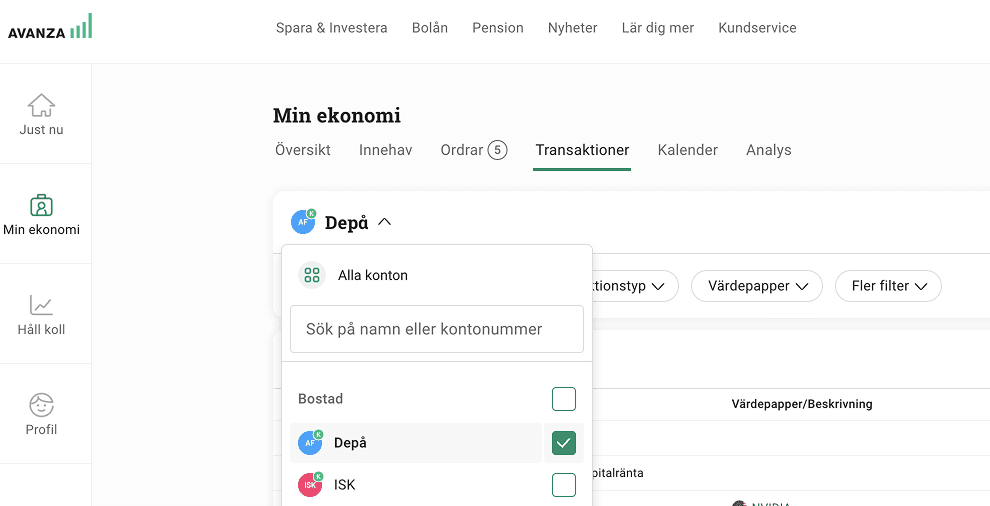
Important: Select the correct account type
Do not export transactions from these account types:
- ISK (Investeringssparkonto - Investment Savings Account)
- KF (Kapitalförsäkring - Capital Insurance)
- TJP (Tjänstepension - Pension)
These account types are tax-deferred or tax-exempt and not relevant for capital gains tax calculations (K4 form).
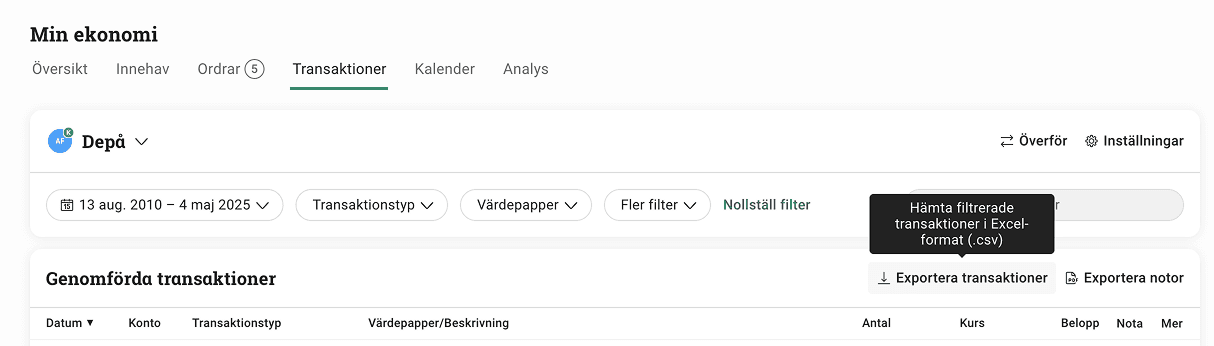
Select the date range
Select the date range for your export.
Select your entire trading history
Optionally filter transactions
Export and download
Click the Exportera transaktioner button and choose Excel-format (.csv).
Upload to Skatteguru
Which transactions are analyzed?
Not all transaction types in the Avanza CSV are included in the analysis. Below is a summary of which types are supported and which are ignored:
- Köp (Buy)
- Sälj (Sell)
- Värdepappersöverföring (Security Transfer)
Only the supported types above are included in your analysis and reports.
Known differences between Avanza and Skatteguru K4 form calculations
For foreign currency accounts, Skatteguru and Avanza may show different SEK values for your transactions. When no actual currency exchange occurs during a transaction (like buying US stocks with USD in your account), Avanza uses their internal exchange rates, while Skatteguru uses Sveriges Riksbank's official rates. Skatteverket recommends using the Riksbank rates that Skatteguru applies. Learn more about currency conversions.

We're Here to Help
Have questions or feedback? We'd love to hear from you. Get in touch.