SkatteguruSkatteguru2.6 Beta
How It WorksPricingFAQHelpNews
Start For Free

Product

  • Pricing
  • News
  • Reviews

Contact

  • Help Center
  • Contact Us
  • Report an Issue
  • Follow on X

Legal

  • Terms of Service
  • Privacy Policy
  • Cookie Policy
  • Cookie Settings
© 2026 Skatteguru
    1. Home
    2. Help Center
    3. Import
    4. Etrade Documents
    5. Execution Time
    Back to E*TRADE Documents

    Finding Execution Time in E*TRADE Orders

    Last updated: Jan 16, 2026

    Why This Matters

    If you have multiple transactions on the same day, knowing the exact execution time is crucial for accurate tax calculations. The order in which same-day transactions occur can significantly impact your capital gains calculations and tax liability.

    When you have multiple transactions on the same day, you need to know the exact time each transaction was executed to ensure they are processed in the correct order. This guide shows you how to find the execution time for your orders in E*TRADE.

    Why Execution Time Matters for Tax Calculations

    When you sell shares on the same day, the order of execution can impact your cost basis and ultimately your capital gains or losses.

    For Swedish tax purposes, knowing the correct execution time helps ensure:

    • Accurate Cost Basis: Correct calculation of which shares were sold and at what cost
    • Correct Capital Gains: Proper calculation of profit/loss for each transaction
    • Compliance: Accurate tax reporting that aligns with Skatteverket's requirements

    Important

    Always use the execution time (when the trade was executed), not the order placement time. For tax purposes, it's when the shares actually changed hands that matters.

    How to Find Execution Time in E*TRADE

    1

    Go to Complete View

    Log in to your E*TRADE account and navigate to the Complete View page:

    1. From the E*TRADE home page, look for the Trading tab in the main navigation
    2. Click on "Complete View" to access your complete trading interface
    2

    Access Open Orders

    In the Complete View, you need to access your orders:

    1. Look for the "Open Orders" section or link
    2. Click on it to access your orders page

    Note

    The "Open Orders" section is where you can view all your orders, both open and executed. This is your gateway to finding execution times for past trades.
    3

    Select the Year and Filter for Executed Orders

    Once you're on the orders page, you need to filter for the correct time period and status:

    Troubleshooting

    I can't find my orders

    If you can't find your orders:

    • Make sure you've selected the correct year in the drop-down
    • Verify that "Executed" is selected as the order status
    • Try checking adjacent years if the trade occurred near a year boundary
    • Consider that the order might have been placed through a different platform or broker

    I don't see execution time in the expanded details

    If the expanded details don't show execution time:

    • Make sure you're looking at an executed order, not an open or cancelled order
    • Try scrolling down further in the expanded details - timing info is usually at the bottom
    • Look for labels like "Order History" or "Execution Details"
    • Contact E*TRADE support if the information appears to be missing from your confirmation

    Frequently Asked Questions

    Can I use the order placement time instead of execution time?

    No. For tax purposes, you must use the execution time (when the trade was executed), not when you placed the order. The execution time is when ownership of the shares actually changed hands, which is what matters for Swedish tax calculations.

    What time zone does E*TRADE use?

    E*TRADE typically shows times in the time zone of the exchange where the stock is listed (e.g., EST/EDT for NYSE/NASDAQ stocks). Important: Skatteguru stores all times in UTC (Coordinated Universal Time). When you paste an E*TRADE time, Skatteguru automatically converts it from Eastern Time to UTC. If you enter the time manually, you must enter it in UTC format.

    Do I need to set execution time for all my transactions?

    Only for transactions where it matters. If you have multiple transactions (BUY, SELL, ESOP_EXERCISE, RSU_VESTING, etc.) on the same day, you should set the execution time for each one to ensure correct order. If you only have one transaction per day, the execution time is not necessary for tax calculations. If a time is not set, Skatteguru treats it as 00:00:00 UTC for ordering.

    How accurate does the time need to be?

    Normally you don't even need to set a time for your transactions. You only need to specify the time of day when you have two or more transactions on the same date, and the order of the events in the ledger is different from what you expect. In that case, the time needs to be accurate enough to determine which transaction happened before the other - this ensures the correct order for tax calculations. Round it to the nearest hour unless you had more than one trade in that hour.

    Related Articles

    • — Learn how same-day transactions affect your tax calculations
    • — Overview of E*TRADE documents needed for tax filing
    • — Details on how Skatteguru parses your E*TRADE documents

    Skatteguru mascot

    We're Here to Help

    Have questions or feedback? We'd love to hear from you. .
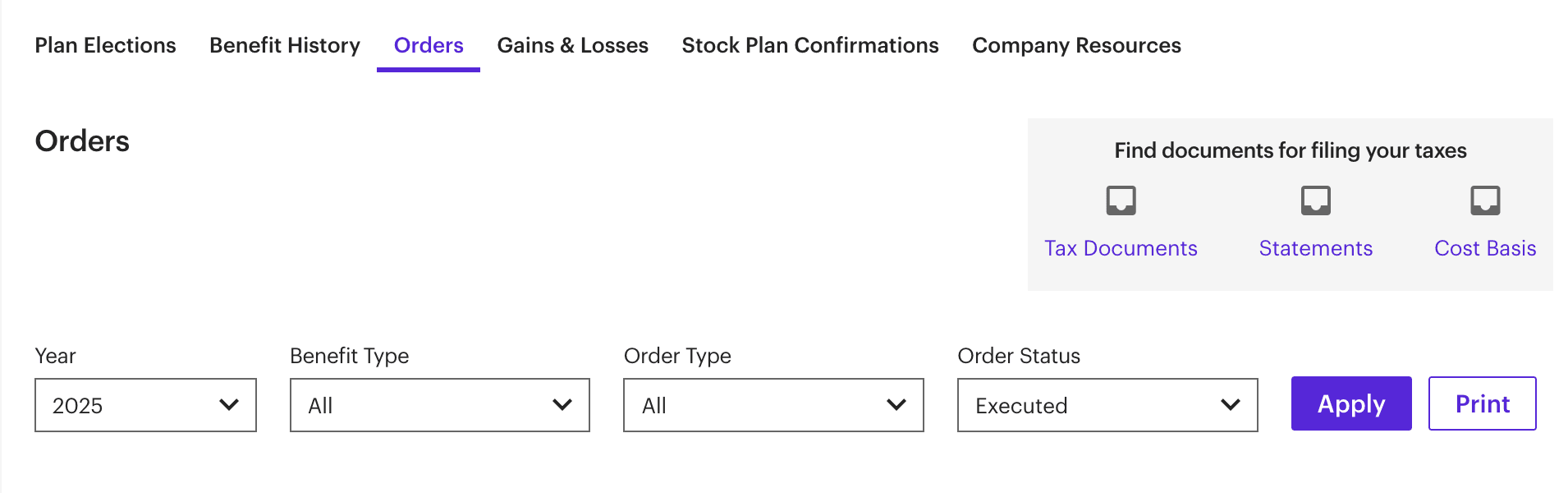
    1. Look for the year drop-down selector on the page
    2. Select the year corresponding to your transaction(s)
    3. If you have trades across multiple years, you'll need to check each year separately
    4. Look for the "Order Status" filter or drop-down
    5. Select "Executed" from the status options
    6. Click the "Apply" button to filter your orders
    E*TRADE Orders page showing year drop-down and executed status filter

    Result

    You should now see a list of all your executed orders for the selected year. Each order shows summary information, but you need to expand them to see the execution time.
    4

    Expand Order Details

    To see the execution time for each order:

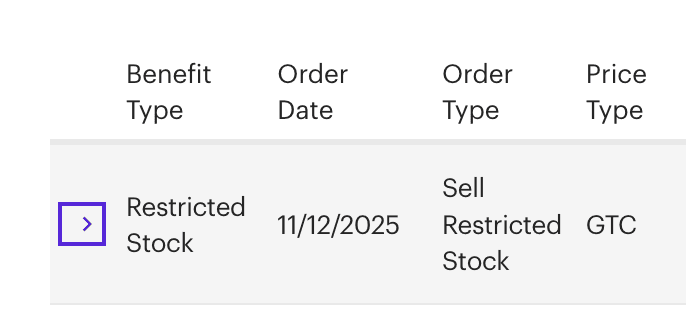
    1. Find the order you're interested in from the list
    2. Click on the wedge/arrow icon (▶ or ▼) next to that order to expand it
    3. This will reveal detailed information about that specific order
    E*TRADE Orders page showing expanded order details with wedge icon
    5

    Find Execution Time

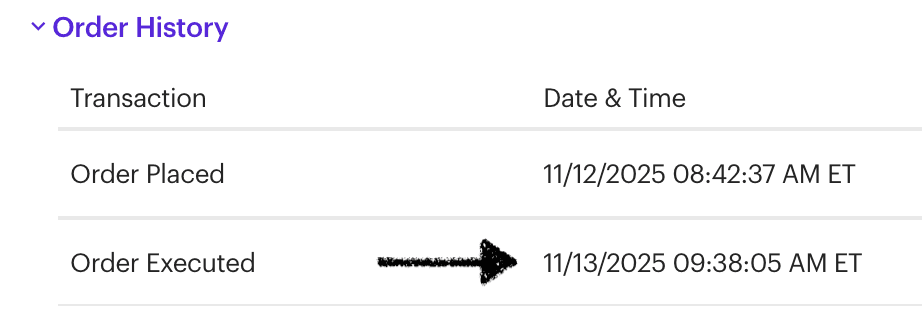
    At the bottom of the expanded order details, you will find the timing information:

    • Order Placed: The date and time when you submitted the order
    • Order Executed: The date and time when the trade was actually executed ← Use this time!
    E*TRADE expanded order details showing order placed and order executed times

    For Tax Purposes

    Always use the "Order Executed" time, not the "Order Placed" time. The execution time is when the shares actually changed hands, which is what matters for Swedish tax calculations. Note that Skatteguru stores times in UTC (Coordinated Universal Time).
    6

    Enter the Time in Skatteguru

    Once you have the execution time from E*TRADE:

    1. Go to the in Skatteguru
    2. Find the transaction you want to update and click on it to view transaction details
    3. In the Time of Day section, click "Set Time"or "Edit Time"
    4. Option A - Recommended: In the "Paste from E*TRADE" field, paste the time from E*TRADE (e.g., "11/13/2025 09:38:05 AM ET" or just "09:38:05 AM") and click "Convert". Skatteguru will automatically convert from Eastern Time to UTC
    5. Option B - Manual: Enter the time directly in HH:MM:SS format (24-hour UTC format) if you prefer
    6. Click "Save Changes" to save

    Tip

    If you have multiple SELL transactions on the same day, repeat this process for each one to ensure they are in the correct chronological order. Skatteguru stores all times in UTC (Coordinated Universal Time).
    Understanding Same-Day Sales and Tax Implications
    Required Documents for Spotify ESOP Users
    How We Process E*TRADE Documents
    Get in touch
    Ledger page